|
BATTLE FORCES Game
Controls
This focus of this document is on using the game client. For
details on the game rules see the
Game
Rules Document.
The
game will begin ( optionally ) with a number of nation picking turns
followed by a capital selection turn. To select your capital
simply use the mouse to select a nation that you own to be your
capital. It is important to select a capital you can easily
defend, losing your capital will prevent you from building new
forces. To complete your turn press the "Submit Turn" button.
Player
Information
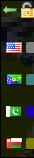
Located in the top right corner of the game area, you will find the
player information tray. This tray will roll out to reveal a
wealth of information about the players participating in this
game. To unroll the tray, simply move your mouse over top of
it. If you have locked the tray in a closed position click the
green arrow to unroll it. To lock the tray, so it will only roll
in/out when you click the green arrow; click the lock. Click to
toggle the lock back to unlocked, free-rolling mode, if you wish.
The default is in unlocked mode. Later you will see that the chat
tray defaults to locked mode.
Your empire's colour, flag and other details, will always be on the
first line in this tray. Any nation or force you own will be
tinted with your empire's colour. You can also mouse over forces
and nations to determine who owns them.
Keep a close eye on the statistics found in this tray. If an
opponent is getting too powerful, they may be close to winning the game.
Map
Controls
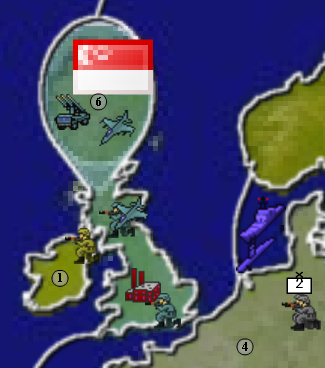 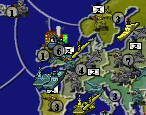 Mouse
Wheel: Zoom the map. The focus point of the zoom will be
located at the mouse cursor's position. You will find zooming
extremely useful for navigating and making sense of a busy
theatre-of-war. If you don't have a mouse-wheel; don't fret, there
are other ways to zoom the map. If you have no mouse or trackpad,
you may take this opportunity to fret. Here's an example of an
unzoomed scene vs. a zoomed one. Mouse
Wheel: Zoom the map. The focus point of the zoom will be
located at the mouse cursor's position. You will find zooming
extremely useful for navigating and making sense of a busy
theatre-of-war. If you don't have a mouse-wheel; don't fret, there
are other ways to zoom the map. If you have no mouse or trackpad,
you may take this opportunity to fret. Here's an example of an
unzoomed scene vs. a zoomed one.
This next list of actions will be performed when you click directly on
the map surface. If you click on a tank or other element that is
on top of the map, something else will probably happen. Try
zooming in if you can't find a bare spot on the map to click.
Mouse Button ( click ): Select your
capital. Select nations during nation picking.
Mouse Button ( click and drag ): Move the map.
Mouse Button ( double-click ): Zoom and position the
map so the view is focused on the nation you double-clicked. This
action will also be performed by double clicking on the income value
tag.
You will find a group of buttons located at the bottom right corner of
the game area. A few of them are for the map.

Zoom In: Increase the magnification of the map

Zoom Out: Decrease the magnification of the map

Centre Map: Restore the map to it's initial position
and magnification.
Nation Income
Icon

On the map you will find, located roughly in the centre of each Nation,
an income value tag. This the amount of income per year the owner
of this Nation will receive. You may mouse over this tag to see
more information about that Nation, including it's name.
Controlling Your
Forces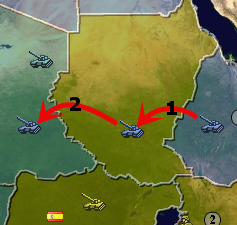
Moving your forces around the map is done with a simple drag-and-drop
interface. Grab the force you want to move, drag it where you want
it to go and then release the mouse to complete the movement. You
can only drag a force from one nation to an immediately neighbouring
nation. To move to a nation that is two borders away, move to the
nation that is closer first, then move to the final destination.
This will be executed as two separate movement steps, as can be seen in
the image to the right. This is assuming your tank has a range of
2 remaining ( it hasn't been moved yet this turn ).
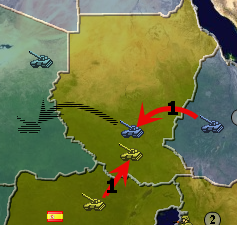
However; your force may not actually make it to its desired
destination. Your movement may be blocked by an opponent's
forces. Each time a force tries to move, the game checks to see if
there are any opposing forces in the same zone. If so, your forces
will must stop moving in order to engage the enemy. This picture
shows an example of the same sequence of moves that the blue tank
attempted previously. You will notice it only ends up moving one
zone, because it was intercepted by the yellow tank moving into the same
zone during movement phase 1. At the start of every turn you are
given the opportunity to watch a playback of the previous turn.
This will allow you to see any interceptions that may have occurred.

If your force starts out in a Zone ( when I say Zone, I mean either a
Nation or a Sea Zone ) where an enemy Force, who is capable of blocking
you, also resides; you will not be able to move at all. Unless you
have a valid retreat path. You may retreat back to the Zone you
originally moved from, if you still own that Zone. You can see the
retreat path for any Force that has one by mousing over it and looking
for the U-turn symbol on the map.
 To
aid in organizing and moving large numbers of forces, you may stack your
forces into Regiments. Just drag-and-drop onto a unit of the same
type to expand or create a Regiment. You may drag-and-drop forces
out of a Regiment as well. To move the entire Regiment at once,
drag-and-drop using the Regimental symbol floating above your
forces. Regiments are only composed of forces of a similar
type. To move a mixed-force army, you can shift-click to select
multiple forces. Hold down the shift key and then click on a force
you own. Do this to any number of forces you want to move.
Then drag-and-drop one of the selected forces; the others will
follow. Use the ctrl key to toggle units as selected or
unselected. Clicking anywhere on the map outside of a selected
unit will deselect all units. This is similar behavior to standard
operating system procedures, which you are most likely already familiar
with. To
aid in organizing and moving large numbers of forces, you may stack your
forces into Regiments. Just drag-and-drop onto a unit of the same
type to expand or create a Regiment. You may drag-and-drop forces
out of a Regiment as well. To move the entire Regiment at once,
drag-and-drop using the Regimental symbol floating above your
forces. Regiments are only composed of forces of a similar
type. To move a mixed-force army, you can shift-click to select
multiple forces. Hold down the shift key and then click on a force
you own. Do this to any number of forces you want to move.
Then drag-and-drop one of the selected forces; the others will
follow. Use the ctrl key to toggle units as selected or
unselected. Clicking anywhere on the map outside of a selected
unit will deselect all units. This is similar behavior to standard
operating system procedures, which you are most likely already familiar
with.
There is an undo button located at the bottom right of the game
area. This will undo your most recent Force movement. Moving
a Regiment is counted as a number of individual moves, just keep
clicking undo until until your entire Regiment is together again ( if
desired ). If you really messed up your turn, you can restart at
any time using the "Restart Turn" button.
Landing Aircraft
 All
aircraft must end their turns positioned either in a friendly nation or,
for fighters; in a sea zone with a friendly aircraft carrier.
After moving your aircraft to a combat position, you can specify where
it should land by dragging the landing strip icon directly to the
desired landing zone. Mousing over either your aircraft or the
landing strip will let you know if you have enough range to make it
safely. After submitting your turn, the battle calculator will
attempt to auto-land any aircraft that don't have valid landing orders
assigned by you. All
aircraft must end their turns positioned either in a friendly nation or,
for fighters; in a sea zone with a friendly aircraft carrier.
After moving your aircraft to a combat position, you can specify where
it should land by dragging the landing strip icon directly to the
desired landing zone. Mousing over either your aircraft or the
landing strip will let you know if you have enough range to make it
safely. After submitting your turn, the battle calculator will
attempt to auto-land any aircraft that don't have valid landing orders
assigned by you.
Purchasing New
Forces
 You
may only build new forces on a nation you own that has a factory on
it. With the exception of factories, which can be built on any
nation you own. You will always start the game with at least one
factory ( located at your capital nation ). Naval units can be
built in a water zone if it borders a nation with a factory. You
may only build new forces on a nation you own that has a factory on
it. With the exception of factories, which can be built on any
nation you own. You will always start the game with at least one
factory ( located at your capital nation ). Naval units can be
built in a water zone if it borders a nation with a factory.
Drag new forces from the Purchase window to the nation you desire them
built on. Those forces will be available for combat in your
next turn. Place naval units in a water zone that
is bordered by a factory. To unpurchase forces, drag them out of a
valid build zone and release the mouse ( an "X" will indicate it is
ready for refund ); your cash will be refunded.
You can use
the green area of the purchase window to organize your purchases before
placing them on the map.
Chat
Located at the bottom right of the game area, you'll find the chat tray
that you can use to chat with other players. To chat,
click anywhere on the chat tray to unroll it. Click in the white
text entry box at the bottom of the tray to give it focus ( if it
doesn't already have it ). Type away. After pressing enter,
your chat message will be sent. Only the previous 16 chat messages
are retained when you close the game. If you have an important
message to send to your allies or enemies, use Warmail.
You will know when another
player is online by looking at the flags in the player tray. If
there is a green outline around their flag, they are currently
online.
Warmail

There is a special purpose email client specifically for sending and
receiving messages during the specific game you are playing. Use
it to negotiate secret alliances, taunt your enemies or share a haiku
about your favorite tank. When you have mail waiting for you to
read the mail icon will be highlighted.
Replay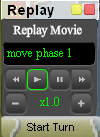 
When a new turn starts, you will be given the chance to see a detailed
replay of what happened during the previous turn. Instead of
clicking the "Start Turn" button, use the "View Playback" button.
This will be your only opportunity to view the replay. You can
pause, rewind and control the speed of the playback using the replay
console. At this point, the Notice Board will be filled with
events of potential interest to you. Clicking on a notice will
focus the map and time-line on the relevant event. When you are
finished viewing the playback, start your turn with the "Start Turn"
button located in the replay console.
Strategy and
Tactics
The rules for
BATTLE FORCES are fairly simple, but the subtle complexity of how a game
will play out rarely is. Check the game information button ( top
right corner ) to remind
yourself
what the conditions for winning the game are. Some games only
require you to capture 2 or 3 opponent's capitals to win the game.
Or if you amass enough cash, that may trigger a winning condition for
some game configurations.
Try to invade and take control of your opponent's capital; while
preventing the same from happening to you. Loss of your capital,
in the worst case, depending on game settings, will lose the game
instantly for you, and in the best case will only crush your economy and
prevent you from building any new forces. You can see what the
capitals for each player are in the Player Information Tray.
On
the map,
each
player's capital Nation will have their flag in it.
Keeping a buffer zone of at least one Nation with forces in it between
your capital and your opponent's forces, is a good defensive
strategy. Build up your forces in that buffer zone to secure a
strong defensive position.
When attacking with powerful, but costly forces, you will want to bring
along some cheaper forces ( like Troops ) to soak up any casualties you
suffer. This may slow your advance, since Troops can only move 1
Nation per turn. You must make the choice between the risk of
losing your more expensive forces and launching a quick attack to take
advantage of any opponents weak defensive position.
Generally, a cautious advance will involve only moving 1 Land or Sea
Zone per turn, even though you have forces capable of traveling a
greater distance. This is necessary if you wish to insure your
combined forces stay together as one battle group. For example,
consider a battle group consisting of a submarine, an aircraft carrier
and a couple of fighter jets escorting a transport ship. Moving
two Sea Zones in one turn can end up with the submarine and fighters
ahead of the carrier and transport. This would occur if enemy
naval forces moved into the same Zone during movement phase 1.
Aircraft are not blocked by naval forces and neither are submarines,
however; your carrier and transport are blocked and will not move into
the second Zone with the fighter and sub.
Know the strengths and weaknesses of each force type and how they move
around the map. Refer to the
Force
Types document.
There is no one winning strategy. Stay flexible and prepared to
change your strategy depending on the current situation.
Thanks for playing. Have fun and see you on the battlefield!
Copyright
© 2011 Human Cube Inc.
|
|